

Cloud hosting is powerful, flexible, and surprisingly easy to overspend on.
Many developers and small businesses start with a lean VPS or pay-as-you-go setup. But over time, it’s common to accumulate idle volumes, oversized VMs, unused snapshots, and always-on dev environments that silently bloat your bill.
Whether you’re running WooCommerce, managing client sites as an agency, or deploying test environments on the fly, these costs stack up quickly. This is especially true when you’re paying per CPU cycle, gigabyte, or second of uptime.
The good news? You don’t have to compromise performance to cut cloud hosting costs.
In this article, we’ll cover eight proven strategies to reduce your hosting spend without sacrificing speed, uptime, or security. From resource audits to billing tweaks and platform comparisons, everything here is actionable and tailored for WordPress users, developers, and online business owners.
What Is Cloud Cost Optimization?
Cloud cost optimization is the process of adjusting your cloud hosting setup, including server resources, configurations, and billing plans, to minimize waste and lower your overall spend.
Cloud cost optimization is about making smarter allocation, only paying for the resources your applications actually need, and choosing the most cost-efficient billing model for how you work.
Key Components of Cloud Cost Optimization
Here are the three main levers:
- Resource Efficiency Right-sizing your VMs, removing idle resources, and scaling only when needed.
- Billing Strategy Choosing between pay-as-you-go, reserved, or spot pricing based on usage.
- Usage Monitoring Setting alerts, watching for spikes, and continuously reviewing your workloads.
Most cloud providers, including Kamatera, DigitalOcean, and Amazon Web Services (AWS), offer flexibility in these areas. But without an active optimization mindset, you’ll likely overpay for resources you don’t use or keep services running that add no value.
What Resources Are You Paying For Right Now?
The first step to reducing cloud costs is knowing exactly what you’re being billed for.
Most cloud hosting invoices are itemized, but that doesn’t mean they’re easy to interpret. CPU, RAM, storage, data transfer, snapshots, IP addresses – each may be priced separately. It’s common to keep paying for things you set up weeks or months ago and simply forgot about.
Run a Full Usage Audit
Start by listing every active and idle resource tied to your account. This includes:
- Virtual machines (VMs): Are they running 24/7? Are they oversized for their workload?
- Storage volumes: Do you have unattached or old disk volumes still racking up fees?
- Snapshots and backups: Are you storing too many copies or using expensive storage tiers?
- Static IPs: Some platforms charge for unused reserved IPs.
- Load balancers or firewalls: These often carry fixed monthly costs even when not actively routing traffic.
Even if each item costs just a few dollars a month, they add up. One idle VM at $20/month is $240 a year – for nothing.
Use Your Platform’s Native Tools
Most providers offer dashboards or usage reports to help you track these costs:
| Provider | Tool | What It Shows |
|---|---|---|
| Kamatera | Cloud Management Console | Usage by VM, volume, image, IP |
| DigitalOcean | Usage Reports / Billing tab | Real-time usage, bandwidth, snapshots |
| AWS | Cost Explorer + CloudWatch | Per-service spend and trends over time |
Set a monthly reminder to review your resources, even a 5-minute check can uncover easy savings.
Are You Running More Than You Need? (Right-Sizing)
Right-sizing means matching your server resources (CPU, memory, and storage) to the actual needs of your application.
Most cloud users overshoot. They provision a larger VM “just to be safe,” or clone a test environment using production specs. Over time, this leads to excessive compute and memory allocation that quietly drains your budget.
Signs You’re Overprovisioned
You might be overpaying if:
- Your CPU usage rarely exceeds 20%.
- RAM usage stays flat, far below total allocation.
- You’re running multi-core VMs for apps that don’t need them.
- Your swap space or disk I/O shows minimal activity.
In other words: you’re paying for headroom you’re not using.
How to Right-Size Your Instances
Here’s a basic framework for downsizing responsibly:
- Monitor Your Usage Use tools like htop, top, or Kamatera’s built-in monitor to assess real-time load.
- Identify Idle Patterns Look at peak vs. average CPU/memory usage over time.
- Test Smaller VMs Spin up a copy of your app on a smaller instance to compare performance.
- Resize or Migrate Downgrade your primary VM, or migrate to a lighter plan with similar capabilities.
If you’re using auto-scaling, be sure to set sensible minimum and maximum resource thresholds to avoid overprovisioning during low-load periods.
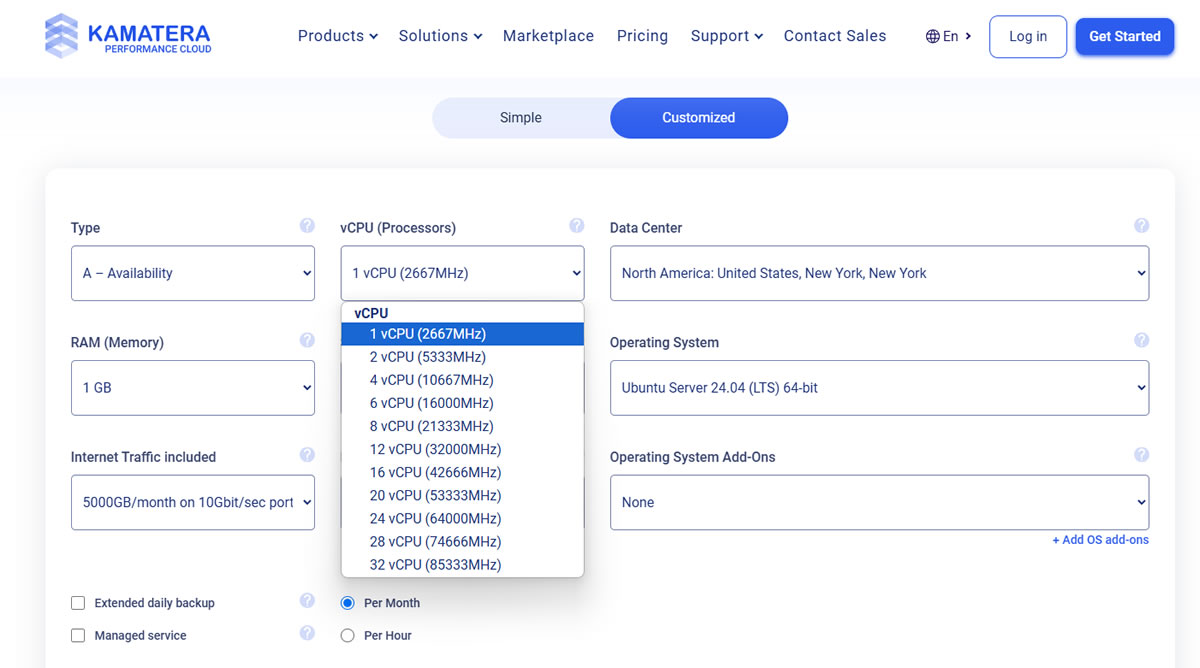
For lightweight workloads such as static websites, headless CMS setups, or staging environments, a minimal configuration, typically 1 vCPU and 1GB RAM, is often sufficient. For heavier use cases like WooCommerce stores, online learning platforms (LMS), or community forums, we think it’s best to start with 2 to 3 vCPUs and 4 to 6GB RAM, then scale up based on usage patterns.
In contrast, high-traffic APIs or media-heavy sites benefit more from horizontal scaling — deploying multiple smaller virtual machines instead of relying on a single large server — offering better resilience and cost control.
Are You Scaling Smartly or Just Overprovisioning?
While auto-scaling in cloud sounds like a silver bullet, it can become just another way to overspend.
Many cloud users scale vertically by default (i.e. upgrading to a bigger VM). While that may help short-term performance, it often leads to bloated costs. In contrast, smart scaling means balancing performance and efficiency by aligning resources with demand—only when and where they’re needed.
Difference Between Static, Vertical, and Smart Scaling
| Type | What It Does | Common Pitfall |
|---|---|---|
| Static Scaling | Fixed resources (e.g. 2 vCPU / 4GB RAM all day, every day) | Wastes money during low-traffic hours |
| Vertical Scaling | Increases size of a single server (e.g. upgrade to 8 vCPU / 16GB RAM) | Overkill for bursty traffic; poor cost efficiency |
| Smart Scaling | Automatically adds/removes smaller nodes based on real demand | Requires setup and monitoring but maximizes value |
When Smart Scaling Pays Off
You should consider dynamic scaling strategies if:
- You run traffic-sensitive workloads (e.g. ecommerce, media-heavy apps).
- Your peak usage is time-based (e.g. promotions, launches, seasonal spikes).
- Your app can be split into smaller services or containerized.
While major cloud platforms like AWS Auto Scaling or DigitalOcean App Platform support automated scaling, Kamatera takes a manual approach. They offer what’s called diagonal scaling, which allows you to scale vertically (resize CPU, RAM, etc.) and horizontally (add more servers) as needed, but without automation triggers. This gives developers full control but requires manual intervention to scale up or down based on usage trends.
This flexibility is still powerful, especially if you’re running a lean team or managing multiple client projects with variable workloads.
Are You Using the Most Cost-Efficient Billing Plan?
Cloud pricing isn’t one-size-fits-all. Choosing the wrong billing model can quietly double your costs.
Most providers offer multiple pricing structures — hourly, monthly, and reserved/committed terms. Picking the right one depends on how long you’ll run the instance, how predictable your workload is, and whether you’re okay with prepaying for savings.
Kamatera vs AWS Lightsail vs DigitalOcean: Billing Flexibility Compared
| Provider | Hourly Billing | Monthly Billing | Long-Term Discounts |
|---|---|---|---|
| Kamatera | Yes | Yes | No long-term lock-ins, pay per use |
| AWS Lightsail | Yes | Yes (flat-rate plans) | Discounts via Reserved Instances |
| DigitalOcean | Yes | Yes | Droplets are fixed-rate, no discount plans |
Kamatera offers true pay-per-use flexibility. You can spin up servers by the hour and pay only for what you use, down to the minute. It’s ideal for short-term, burst-heavy, or experimental workloads.
Lightsail provides fixed bundles (e.g. 2 vCPU + 4GB RAM + 80GB SSD) with predictable monthly pricing. However, AWS’s deeper discounts come with Reserved Instances—where you commit for 1 or 3 years in exchange for lower rates.
DigitalOcean is somewhere in the middle. Their Droplets are priced monthly or hourly, but there are no discounts for longer commitments unless you switch to their App Platform, which includes some scaling logic.
Do You Monitor Usage and Set Alerts?
If you don’t monitor your servers, you’ll never spot hidden cost leaks until the hosting bill hits.
Effective usage monitoring goes beyond just performance tuning; it enables real-time decisions that trim waste and improve ROI.
Key metrics to watch include CPU usage, which reveals underutilized compute or potential bottlenecks; memory allocation, to avoid paying for idle RAM; disk usage, to identify and clean up logs, temp files, or unused volumes; and network I/O, especially if your plan charges for bandwidth, where excessive data transfer can quickly become expensive.
Tools to Try Out
| Provider | Built-in Monitoring | Alerting Capabilities |
|---|---|---|
| Kamatera | Yes (via Cloud Console) | Manual; alerts require external integration |
| AWS Lightsail | Yes (with CloudWatch Lite) | Customizable alerts (CPU, memory, disk, etc.) |
| DigitalOcean | Yes (Monitoring & Insights) | Alerts for CPU, bandwidth, disk, memory |
Do You Schedule Downtime for Dev/Test Servers?
Not all workloads need to run 24/7. Development, staging, and testing servers are often only used during business hours. However, many users, ourselves included, forget to shut the unused servers down and let them rack up charges around the clock.
If your cloud provider allows server scheduling or API access, you can automate shutdowns during off-hours.
- Kamatera: Supports scripting and remote server control via API—great for scheduled shutdowns.
- DigitalOcean: No native scheduler, but you can script it with the
doctlCLI or use a third-party service. - AWS: EC2 and Lightsail support scheduled events via Lambda or CloudWatch Events.
Simple Example: Automating Off-Hour Shutdowns
# Shutdown dev server every day at 8pm
0 20 * * * curl -X POST https://api.kamatera.com/stop-server --data 'server_id=1234'
This small habit can save up to 50% on your dev/test infrastructure costs, especially when combined with hourly billing.
Conclusion: How Much Can You Actually Save?
Cloud cost optimization is about running lean, not bare.
If you apply even half the steps we’ve covered: cleaning up unused assets, right-sizing your instances, scheduling downtime for dev servers, or picking a better billing plan; you can realistically cut your hosting bill by 25% to 50%, sometimes more. And you’ll do it without touching your site’s uptime, speed, or user experience.
For example, a small agency running five client staging sites 24/7 could save $300+ a year just by scheduling nightly shutdowns.
An ecommerce brand with oversized servers could downsize by one tier and save $20 – 40 per server per month with no performance loss if monitored properly.
The real takeaway? Optimizing cloud costs is less about sacrifice and more about strategy. And unlike bargain-bin hosting, this approach lets you keep the performance you need without the bloat.


