
Windows Server is a Microsoft-developed operating system designed for networking, data storage, and application hosting, with the latest versions being Windows Server 2019, 2022, and 2025. Its key features include compatibility with Microsoft tools, built-in virtualization via Hyper-V, advanced security, and seamless Azure integration.
Unlike Linux, which excels with open-source technologies, Windows Server is optimized for Microsoft-centric ecosystems like ASP.NET, MSSQL, and IIS.
In this article, we’ll explore Windows Server’s key features, its advantages for web hosting, and how it fits into the broader landscape of hosting solutions.
What is Windows Server?
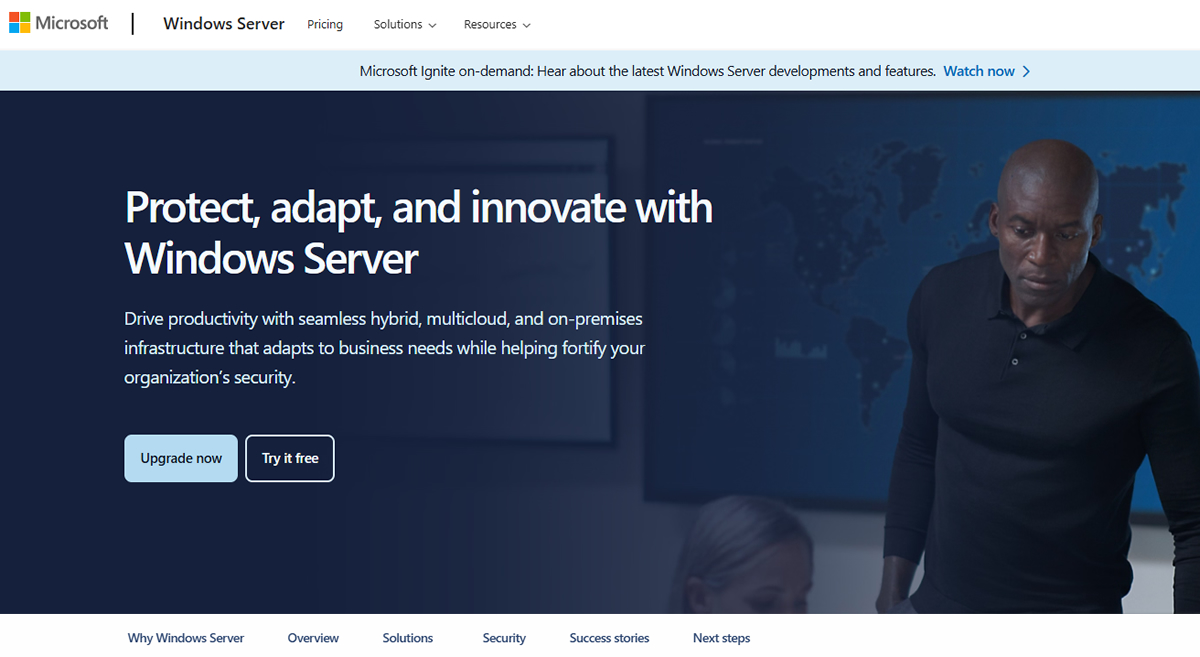
Windows Server is a server operating system developed by Microsoft, specifically designed for networking, data storage, and application hosting. Unlike the regular Windows OS used on personal computers, Windows Server is optimized for large-scale tasks such as hosting websites, running enterprise applications, and supporting remote desktop services.
As a hosting platform, it is particularly suitable for projects that rely on Microsoft technologies. Windows Server supports IIS (Internet Information Services), a feature-rich web server designed for running websites and applications. IIS integrates seamlessly with Microsoft services like ASP.NET and MSSQL, making it a natural fit for developers building on the Microsoft stack.
In contrast to Linux servers, which is often seen as the default choice, Windows Server focuses on providing a streamlined experience for Microsoft-based ecosystems.
Windows Server System Requirements
Before installing Windows Server, it’s important to ensure your hardware meets the minimum requirements:
- Processor: 1.4 GHz 64-bit processor with support for virtualization.
- RAM: 512 MB for the Standard Edition; 2 GB for Server with Desktop Experience.
- Storage: Minimum of 32 GB of disk space.
- Network: A Gigabit Ethernet adapter for reliable connectivity.
Different Versions of Windows Server



Over the years, Microsoft has released several Windows Server versions, each bringing new features, enhanced performance, and improved security. Below are the latest versions:
Windows Server 2019
This version improved on its predecessor with features like Storage Migration Service for seamless data transfers and System Insights, which uses machine learning to analyze system performance. It also strengthened hybrid cloud capabilities, allowing better integration with Microsoft Azure.
Key Enhancements & Features
- Storage Migration Service: Simplifies data migration between servers.
- System Insights: Uses machine learning to analyze performance.
- Hybrid Cloud Support: Tightens integration with Microsoft Azure for hybrid cloud scenarios, supports Azure Backup and Azure Site Recovery for disaster recovery.
- Kubernetes Support: Native support for containers and Kubernetes, improving DevOps workflows.
Windows Server 2022
Released in 2021, Windows Server 2022 focused heavily on security. It introduced Secured-Core Server to protect against firmware-level attacks and HTTPS and TLS 1.3 for encrypted communications. Its performance improvements made it ideal for hosting demanding applications.
Key Enhancements & Features
- Secured-Core Server: Protects against firmware-level attacks.
- TLS 1.3: Ensures encrypted communications.
- Hotpatching: Updates applied without requiring server reboots, reducing downtime for critical systems.
- SMB over QUIC: Encrypted file sharing over the internet without using a VPN.
- Edge Compatibility: Optimized for edge computing, making it suitable for IoT and real-time analytics workloads.
Windows Server 2025
The latest release, Windows Server 2025, continues to enhance scalability and security. Key updates include expanded container support, better integration with Azure Arc, and optimized support for AI-driven applications. This version is designed with the future in mind, offering tools for businesses adopting next-generation technologies.
Key Enhancements & Features
- Kubernetes 1.25 Integration: Full compatibility with the latest Kubernetes standards for orchestration.
- Optimized for AI Workloads: Native support for AI-driven applications with hardware-accelerated AI inference and optimized resource allocation.
- Azure Arc Improvements Simplified management for hybrid and multi-cloud infrastructures.
- Enhanced Security Features Built-in support for zero trust security principles and enhanced Advanced Threat Protection (ATP) capabilities for better security.
Five Key Features of Windows Server for Web Hosting
1. Compatibility with Microsoft Technologies
One of the standout features of Windows Server is its compatibility with Microsoft tools and frameworks. It supports:
- ASP.NET: A powerful framework for building dynamic websites and web applications.
- MSSQL: Microsoft’s relational database system, designed for high-performance and secure data management.
- SharePoint and Exchange Server: Ideal for enterprise-level collaboration and communication.
2. Graphical User Interface (GUI)
Unlike Linux, which primarily uses a command-line interface, Windows Server provides an intuitive GUI. As demonstrated in the video below, the GUI makes it easier for beginners and non-technical users to manage server configurations and applications.
3. Scalability
Windows Server is built to handle growth. With support for virtual machines, load balancing, and clustering, it allows businesses to scale their infrastructure as traffic increases. Features like Hyper-V* enable easy virtualization for added flexibility.
Further more, Windows Server works seamlessly with Microsoft Azure. For businesses or organizations that are already on Microsoft ecosystem, the move to host their websites on a Windows Server is a no-brainer. Features like Azure Arc extend management capabilities, allowing webmasters to control both on-premises and cloud-hosted environments from a single dashboard.
* What is Hyper-V? Hyper-V is the Windows Server’s built-in virtualization platform that allows businesses to run multiple virtual machines on a single physical server. It reduces hardware costs and improves resource utilization.
4. Integration with Active Directory
Active Directory (AD) is a cornerstone of Windows Server. It provides centralized control over user authentication, permissions, and devices in a network. For instance, a company can use AD to manage access to sensitive files or ensure that only authorized users can log into specific systems.
5. Regular Updates and Support
As part of the Microsoft ecosystem, Windows Server benefits from regular updates and extensive technical support. This ensures security vulnerabilities are addressed promptly, and users have access to documentation and resources.
Difference Between Linux and Windows Server
When comparing Windows Server and Linux hosting, the key difference lies in their compatibility and use cases.
Windows Server, as you can see from the features highlights above, is ideal for applications requiring Microsoft tools. Linux, on the other hand, is better for open-source technologies like PHP and MySQL. Linux offers a lightweight, cost-effective solution, whereas Windows Server provides advanced features for enterprise-level needs but comes with higher costs due to licensing.
Both server operating systems have strong security, but Windows requires proper configuration, while Linux is more secure by default with community-driven updates.
Linux vs. Windows Hosting
| Feature | Windows Hosting | Linux Hosting |
|---|---|---|
| Technology Support | ASP.NET, MSSQL, IIS, SharePoint, Exchange | PHP, MySQL, Apache, Nginx, WordPress |
| Performance | Optimized for IIS, resource-intensive | Lightweight and efficient |
| Ease of Use | GUI-based, beginner-friendly | CLI-based, requires technical knowledge |
| Security | Regular updates, requires configuration | Secure by default, community-driven fixes |
| Cost | Higher due to licensing | More affordable, open-source software |
Best Deployment Practices for Windows Server Hosting
1. Choose the Right Edition of Windows Server
Windows Server comes in different editions, each tailored to specific use cases. Choosing the right edition ensures that your hosting environment matches your application’s demands without unnecessary costs.
- Essentials Edition: Best for small businesses hosting simple websites or internal applications. It supports up to 25 users and 50 devices but has limited virtualization capabilities.
- Standard Edition: Ideal for medium-sized applications that require virtualization and scalable infrastructure. It supports two virtual machines.
- Datacenter Edition: Designed for enterprise-level deployments with unlimited virtualization rights and support for large-scale workloads.
2. Optimize IIS (Internet Information Services)
IIS is the backbone of Windows Server web hosting, and its configuration plays a crucial role in performance and reliability. Optimization involves:
- Caching: Enable output caching in IIS to reduce load times for frequently accessed pages.
- Compression: Use IIS compression to minimize file sizes for faster data transfer.
- Connection Limits: Set connection limits to avoid overloading the server during traffic spikes.

3. Secure Your Server
Security is paramount when hosting on Windows Server. Following these practices will help safeguard your data and applications:
- Install Security Updates: Regularly apply Windows Server updates to patch vulnerabilities.
- Enable Windows Defender: Use the built-in antivirus tool for malware detection and prevention.
- Firewall Configuration: Set up a Windows Firewall to restrict unauthorized access and monitor traffic.
- SSL Certificates: Encrypt data transmissions by enabling HTTPS with an SSL certificate.
4. Leverage Virtualization with Hyper-V
Hyper-V, a native feature of Windows Server, allows you to create virtual machines (VMs) for better resource allocation. This is particularly useful for separating development, staging, and production environments on the same physical server.
- Isolate Applications: Run different applications on separate VMs to avoid conflicts.
- Resource Allocation: Assign specific resources (CPU, RAM) to each VM to optimize performance.
- Testing Environments: Use Hyper-V to create testing environments without affecting production servers.
5. Monitor Performance and Resources
Monitoring tools are essential for tracking the health and performance of your Windows Server. Look for solutions that provide real-time data on CPU usage, memory, disk I/O, and network activity.
- Windows Performance Monitor: A built-in tool for tracking system performance and identifying bottlenecks.
- Third-Party Tools: Use platforms like Datadog or Uptime Robot to monitor server uptime and application performance.

6. Automate Backups and Disaster Recovery
Regular backups are critical to protect against data loss. Automate your backup process to ensure all files, databases, and configurations are saved at regular intervals. Implement a disaster recovery plan to minimize downtime in case of hardware failures or cyberattacks.
- Backup Frequency: Choose daily or weekly backups depending on your project needs.
- Remote Storage: Store backups in a separate location to safeguard against local server failures.
- Disaster Recovery Testing: Periodically test your recovery plan to ensure its effectiveness.
7. Fine-Tune Database Performance
For Windows Server hosting, MSSQL is the most commonly used database system. Optimizing your database setup ensures fast queries and minimal downtime:
- Indexing: Use proper indexing to speed up data retrieval.
- Connection Pooling: Configure connection pooling in IIS to manage multiple database requests efficiently.
- Query Optimization: Regularly review and refine SQL queries to improve database performance.
8. Use Load Balancing for High-Traffic Applications
For applications experiencing high traffic, load balancing distributes requests across multiple servers to maintain performance and uptime. Windows Server supports load balancing configurations through IIS or external tools.
9. Optimize Resource Usage
Ensure your server’s resources are utilized efficiently to prevent overloading and improve performance. This includes:
- Resource Limits: Set quotas for memory and CPU usage for each application.
- Disk Cleanup: Regularly remove unnecessary files and logs to free up space.
- Scheduled Tasks: Automate maintenance tasks, such as log rotation and temporary file cleanup.

Wrapping Up
Deploying Windows Server for web hosting involves strategic planning and leveraging the right tools and hosting provider. By following best practices like optimizing IIS, securing your server, and using virtualization tools like Hyper-V, you can ensure a stable and high-performance hosting environment.
For projects ranging from small business websites to large-scale enterprise applications, recommended Windows hosting providers like Ultahost, TMDHosting, and LiquidWeb offer tailored solutions to meet your needs. To make the best decision, explore detailed web hosting reviews and our top selections here on HostScore.net, where we provide honest insights to help you choose the perfect hosting solution.


